
Introduction to barcode scanner
Barcode scanners are very popular especially in warehouse setups where users need to scan barcodes for various different use cases. For example, it could be for logging inventory. There is an internal barcode scanner control within Power Apps but a lot of times users want the ability to use external scanners because of the ease of use. To learn more about the internal scanner control, click here.
Setting up Socket barcode scanner
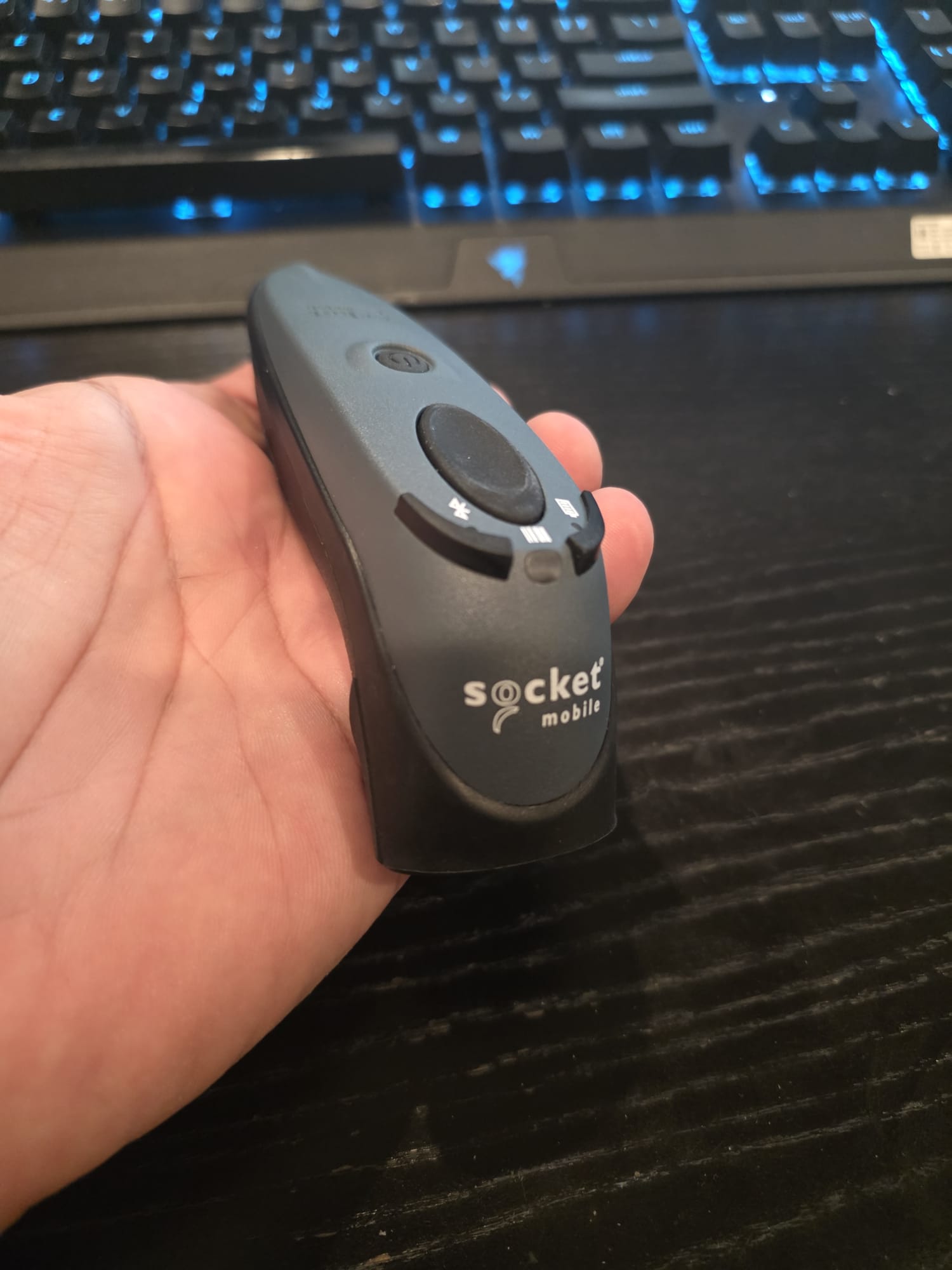
For one of my projects, I set up a Socket barcode scanner to work with my app. The setup wasn't very straightforward so I decided to share the step-by-step instructions.
But first, here is the scanner I used (Socket D700):
The 1st step is to download the Socket Mobile Companion app:

Once the app is downloaded, following the on-screen instructions to connect the scanner to your mobile device via Bluetooth:


Demo of barcode scanner
Here is a demo:
Recent articles
- The modern text input control – what is new about it?
- How to add smart offline capabilities in embedded canvas apps
- How to add offline capabilities in embedded canvas apps